AI BOX GPU Selector – The Smart Way to Harness Your GPU Power
AI BOX GPU Selector lets users assign apps to internal or external GPUs with drag-and-drop control. Optimized for AORUS AI BOX eGPU, generative AI tools, and multi-GPU laptops.
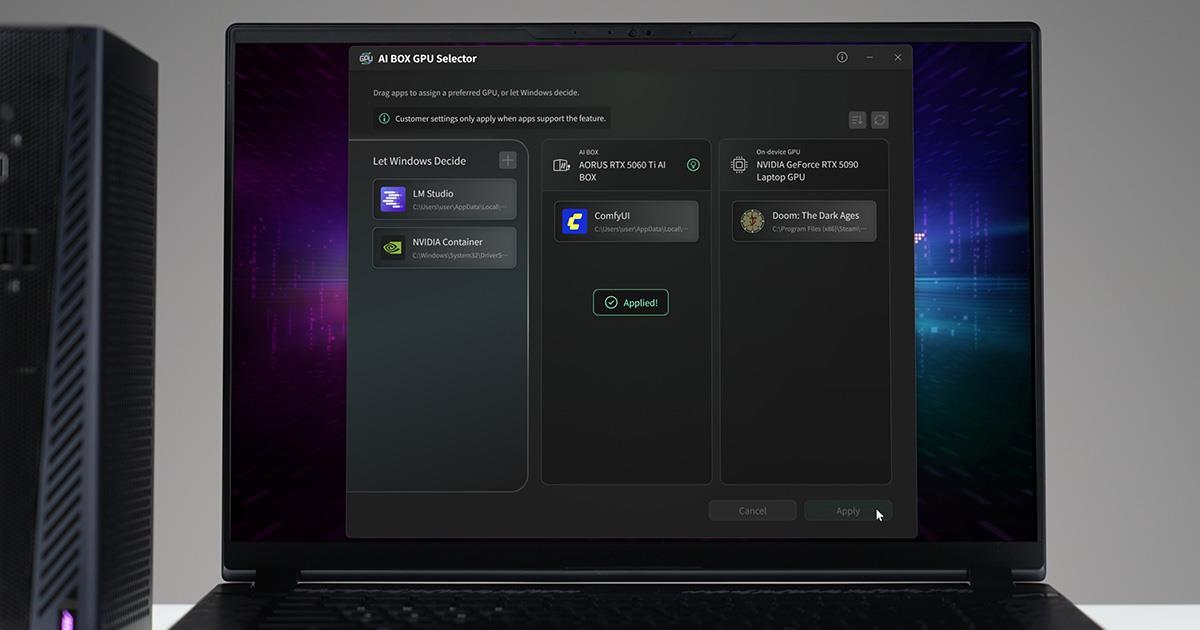
To help everyone get the most out of the AORUS AI BOX eGPU series, GIGABYTE introduces the AI BOX GPU Selector — a more intuitive control application that empowers users to assign individual applications to the most suitable GPU.
A Purpose-Built Tool for Expanded-GPU Users
The AI BOX GPU Selector is designed for scenarios where a system may include both an internal laptop GPU and an external AORUS AI BOX. Instead of relying on Windows' built-in GPU switching in Windows Settings > Graphics — which can be limited or buried in menus — the AI BOX GPU Selector gives users direct, explicit control over which GPU each application should run on.
Simple, Visual, and Effortless Control
The AI BOX GPU Selector features an intuitive Drag-and-Drop Interface. Simply drag your application icon and drop it onto the specific GPU you want it to use. No complex menus, no trial and error. It is visual, fast, and effortless.
Built for the Generative AI Era
Built-in Windows graphics settings often struggle to recognize or properly manage specialized local AI applications. The AI BOX GPU Selector bridges this gap by providing native support for today's most popular Generative AI tools, including:
Whether you're training a local LLM or generating creative assets, the AI BOX GPU Selector ensures demanding workloads are routed exactly where you want them, without the need to find and edit the lengthy configuration files from the program’s folder.
You can find the latest version of the AI BOX GPU Selector from the links below:
AORUS RTX 5090 AI BOX
- ComfyUI
- LM Studio
Whether you're training a local LLM or generating creative assets, the AI BOX GPU Selector ensures demanding workloads are routed exactly where you want them, without the need to find and edit the lengthy configuration files from the program’s folder.
You can find the latest version of the AI BOX GPU Selector from the links below:
AORUS RTX 5090 AI BOX