Solutions
Seek Solutions & Frequently Asked Questions (FAQ)
Dec 22, 2025
AORUS AI BOX Series Initial Setup FAQ
*Since USB4 does not require mandatory support for eGPU, implementations may vary across different computer models. We recommend checking with your computer manufacturer to confirm whether your USB4 port supports external GPU functionality.
To ensure the best experience, GIGABYTE recommends the following baseline requirements before the first setup of your AORUS AI BOX:
- Make sure your laptop's operating system has been upgraded to Microsoft® Windows® 11 version 25H2 (Build 26200) or later.
- If your laptop has a discrete NVIDIA GPU, you must use only the desktop GPU driver of the NVIDIA driver to run both the laptop GPU and the AI BOX.
DO NOT have both laptop GPU driver and desktop GPU driver installed in the system.
Typical Driver Installation Process
- Download the latest NVIDIA driver (https://www.nvidia.com/en-us/drivers).
Choose “GeForce RTX 50 Series” >> “NVIDIA GeForce RTX 5090” or “NVIDIA GeForce RTX 5060 Ti” (according to your AORUS AI BOX model) to ensure you get the correct desktop GPU driver.
Make sure DO NOT choose any version from “GeForce RTX 50 Series (Notebooks)”.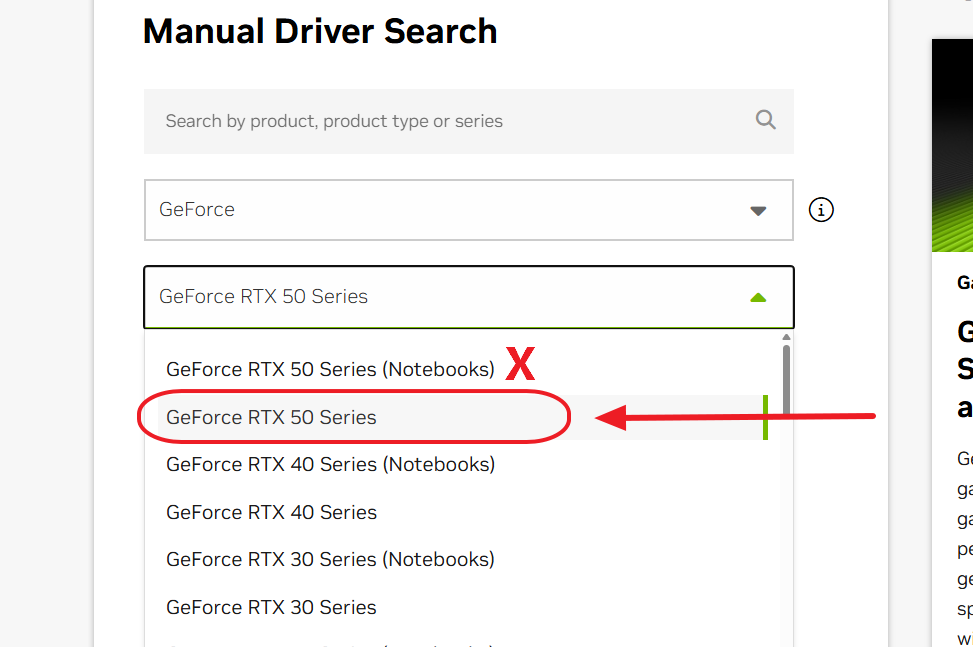
- Close every running application and save your files.
- Connect the AORUS AI BOX to the Thunderbolt port.
Windows should play the “new device connected” sound, and Device Manager should temporarily detect it as a “Microsoft Basic Display Adapter."
If you have an external monitor, connect it to the AI BOX now.
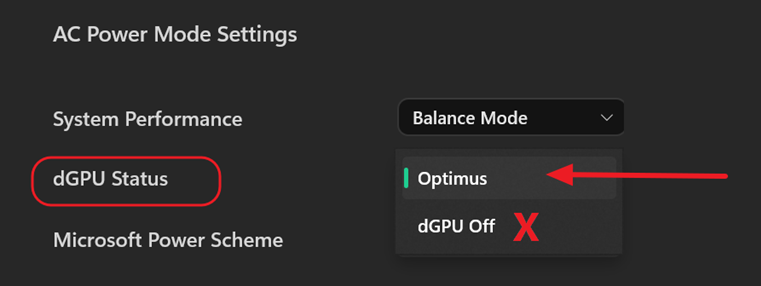
- If your laptop has a discreate GPU, also make sure it’s NOT disabled by the laptop manufacturer’s application.
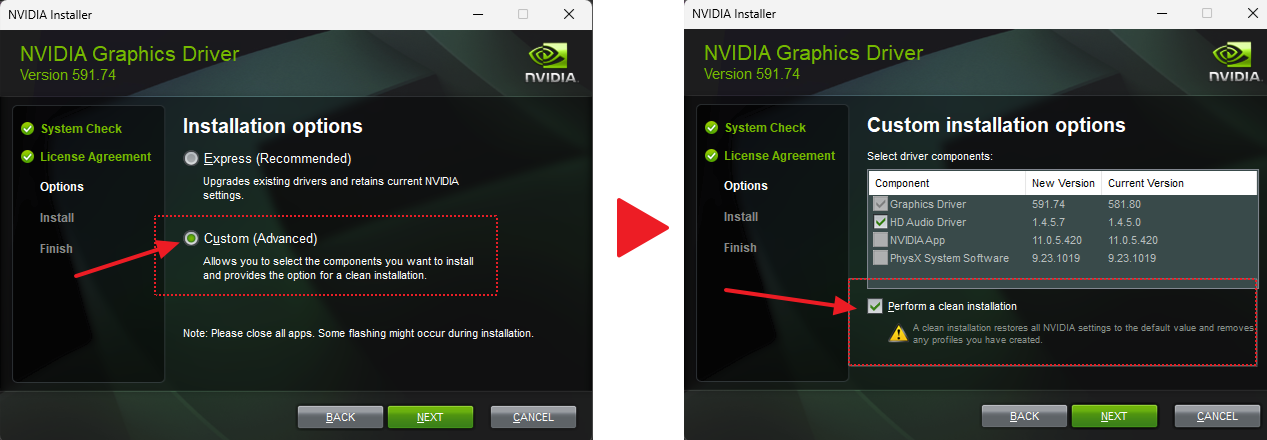
- Install the driver downloaded in Step 1. Be sure to select the “Custom (Advanced)” installation option, and click “Perform a clean installation”.
Possible Outcomes After Step 5
A. Everything works normally
- Video output is normal.
- Device Manager correctly shows the GPU name of the AI BOX.
>> Congratulations! You're all set.
B. AI BOX outputs video, but laptop GPU shows a warning
- AI BOX can output video via HDMI / DisplayPort.
- Device Manager shows your laptop’s discrete GPU (if applicable) or integrated graphics with a yellow exclamation mark.
- Your laptop’s built-in display may not output video.
>> Please restart your laptop to allow the driver to refresh. Once Device Manager correctly shows the GPU name of your AI BOX, you’re good to go.
C. No video output anywhere
- No output on the laptop screen.
- AI BOX also has no video output, OR you have no external monitor to check.
>> Press and hold the laptop power button for 5 seconds to force a restart.
>> After rebooting, you may fall into Scenario B. Follow the instructions accordingly.
D. Other errors, failure messages, or abnormal behavior
>> Please contact your region’s GIGABYTE customer service for help.